

Bell Schedule & Class Alarms
Rings a bell and announces each class period out loud.
Bell Schedule is for teachers and schools replacing a speaking clock or a PA bell. Add your periods, and it rings a bell and announces each one out loud. Chrome has to be running for the bells to ring.
Instruction first, tool second. Made by Patrick McMillan, a teacher.
Get started
- Choose Get it on Chrome and add Bell Schedule to Chrome. The settings page opens by itself. Pin the icon so it is easy to find.
- In a schedule template, set a Period name, Starts and Ends for each period. + Add period adds a row that starts 5 minutes after the last one.
- Under “Which schedule runs when,” choose a schedule for each weekday. Or choose “Rotating days” and pick Numbered days or Letter days. Use the drop-down beside each day to choose its schedule. A day left on “No school” has no bells. Under “Today is,” pick today’s day and press Set. If Set is greyed out, today is not a school day, so open “Or count from a different date.”
- Add “Special days” for half days or closures.
- Set your warnings, your bell sound and “What it says.” Press ▶ Play this bell and ▶ Hear this voice to test them.
- Press Save settings (or Ctrl+S, Command+S on a Mac). Nothing applies until you save.
Until you change it, a new install uses a sample schedule: a “Regular Day” from 7:45 AM to 2:55 PM, Monday to Friday, with warnings at 10 and 2 minutes and the Gentle bell at 70 percent volume. Speech and desktop pop-ups start out turned on. The sample also has an “Extended Homeroom” schedule you can use for a special day. Edit it all to match your school.
Using it
The popup
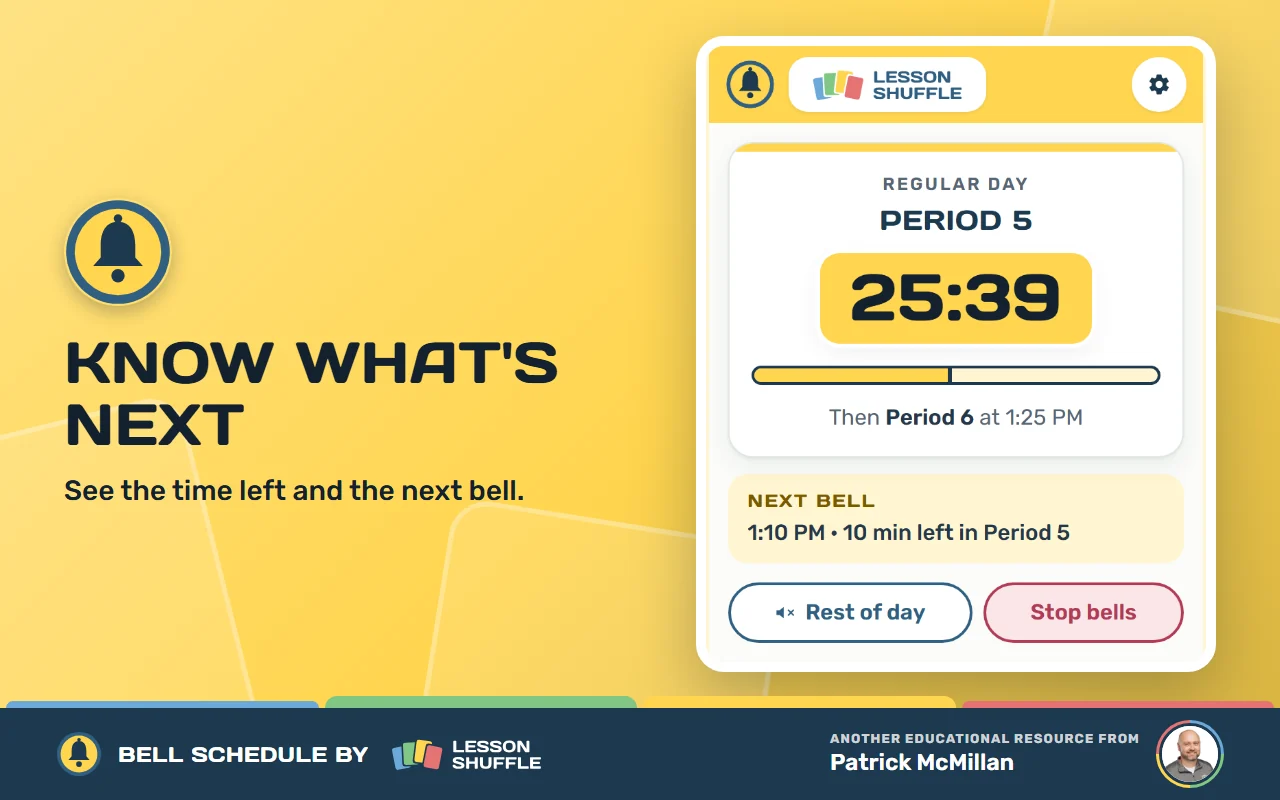
Click the icon to see the current period, a countdown and a progress bar. It also shows the time of the next bell. The buttons are Rest of day and Stop bells. After you press either one, Resume bells appears. The gear opens “Schedule & settings.” On the toolbar icon, a ring empties and changes color, and the badge shows the minutes left.
Templates
On the settings page, press + Add template, Duplicate or Delete to manage schedules, such as a regular day and a half day. “Clock” switches between 12-hour and 24-hour time.
Which schedule runs when
Choose “Same every week” to give each weekday a schedule, or “No school.” Or choose “Rotating days” for numbered days or letter days. Pick the style, use + Add a day if you need more days, and choose a schedule for each day in its drop-down. A day left on “No school” has no bells. Then set “Today is” and press Set, and use “Check it looks right” to preview.
Special days
Pick a date and a schedule, then press Add day.
Bells
Turn “Alarms on” on or off. Choose to ring when a period starts, when it ends, and for time-remaining warnings. A warning can be anywhere from 1 to 240 minutes, and you can add more with + Add warning. Choose a sound (Soft chime, Gentle bell, Single ding, Glass, Wood or “No sound (speech only)”) and set the Volume. You can also show a desktop notification.
Spoken announcements
Turn “Speech on” and choose what to announce: period starts, period ends and time-remaining warnings. Pick a voice (English only) and set Speed and Pitch. Choose a voice that is not marked online to keep announcements on your device. Press ▶ Hear this voice to listen. Under “What it says,” you can write your own sentences using {period}, {next}, {minutes} and {time}.
Speaking clock
This is off by default. Turn it on to announce the time every 5 to 30 minutes, or every hour. You can limit it to school hours.
Quiet for a moment
Rest of day silences the bells, announcements, pop-ups and the speaking clock until midnight. Stop bells does the same until you press Resume bells, or until Chrome restarts.
Backup and sharing
Export settings saves your setup to a file. Import settings loads one. Reset to defaults starts over.
Something not working?
- No bell? Check that “Alarms on” is on, the Ring switches are on, a Sound is chosen and the Volume is up. Check your computer’s volume too. If you pressed Stop bells or Rest of day, press Resume bells.
- No speech? Check that “Speech on” is on, the Announce switches are on, and an English voice is installed on your computer.
- Turning “Alarms on” off still allows speech and desktop notifications.
- Nothing rings at all? Today may be set to “No school.” A rotating schedule needs a start date. The page says “Pick a date to start the cycle from. Without it, no bells will ring.” Also check that no period ends before it starts. A period like that is ignored.
- Times look wrong? Bell Schedule uses your computer’s clock and time zone.
- A 1 minute warning reads “1 minutes left” with the default sentence. You can change the wording under “What it says.”
- Changed something and nothing happened? Press Save settings. Nothing applies until you save.
Frequently asked questions
Does Chrome have to be open?
Yes. Chrome has to be running. You do not need any one tab open. If Chrome is closed or the computer is asleep, bells are missed.
What happens after the computer sleeps?
When it wakes, a bell that is more than 90 seconds late is dropped. Only the newest bell that is due plays. Bells can also run up to a minute late.
Can I set up half days?
Yes. Use “Special days” to pick a date and a schedule.
Does it work with Day 1 and Day 2, or days A to F?
Yes. Choose “Rotating days.” Dates set to “No school” do not move the rotation forward. Special days that have a schedule do.
How do I silence the bells for an assembly?
Press Rest of day to silence the bells, announcements and pop-ups until midnight. Or press Stop bells, and press Resume bells when you are ready.
Can I share my schedule with a colleague?
Yes. Press Export settings. Your colleague presses Import settings and then Save settings.
Can it say the time out loud?
Yes. Turn on the “Speaking clock.” It is off by default.
Your privacy in plain words
- Bell Schedule does not collect your information. The extension itself makes no network requests.
- Your schedule, period times and preferences are saved in Chrome on your computer. They are not synced between computers.
- Spoken announcements use Chrome’s built-in text to speech. The voice list marks online voices. If an online voice is used, which can happen with the “Best available” setting, Chrome may send the announcement text to that voice provider. Choose a voice that is not marked online to keep announcements on your device.
- Bell Schedule cannot read web pages. It has no host permissions and no content scripts.
- Chrome permissions: alarms wakes it at each bell, storage saves your schedule and mute state, offscreen plays the bell, tts speaks, and notifications shows the optional pop-up.
Read the full privacy policy.
Contact
Questions, ideas or a bug to report? Email patrick@lessonshuffle.com.
Enjoying Bell Schedule?
Buy me a coffee