

Visual Timer by Lesson Shuffle
A free classroom timer that floats over any regular page, including full-screen Google Slides and Canva.
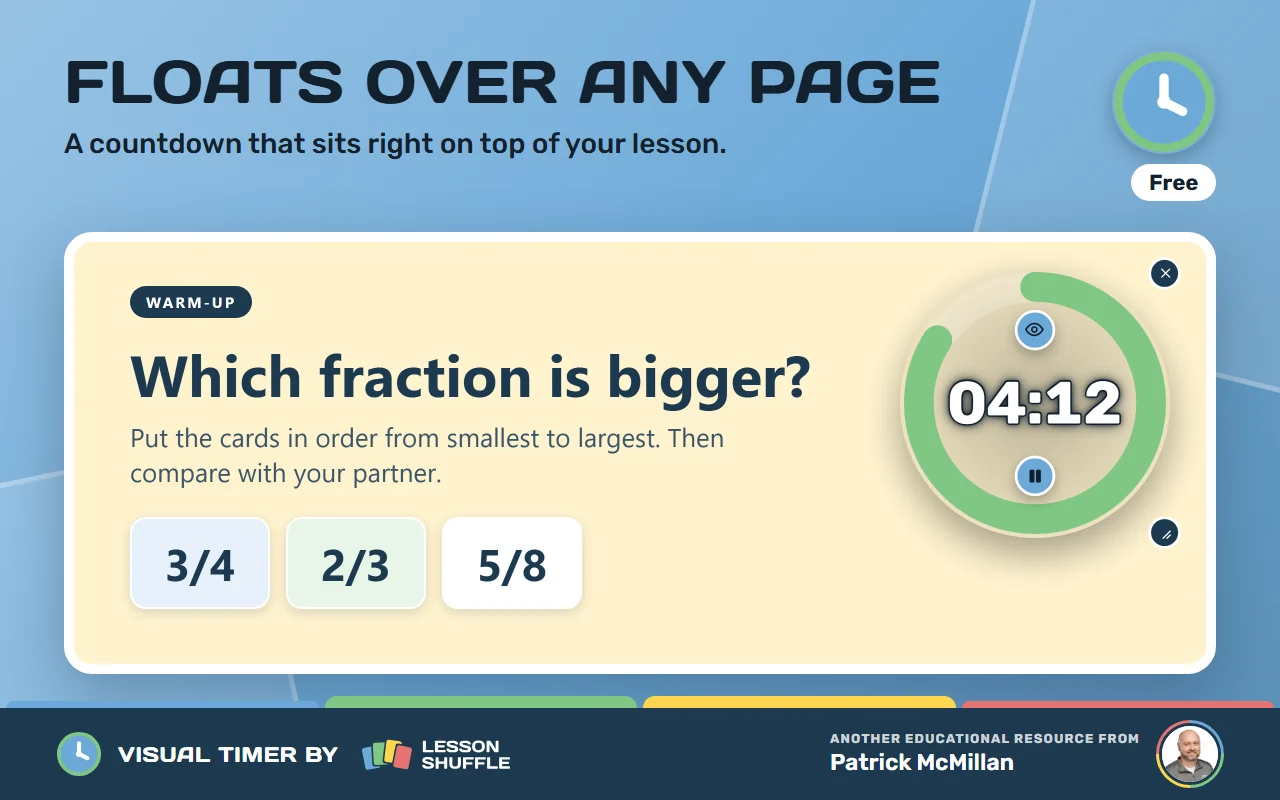
Visual Timer shows a countdown with a colored ring that shrinks as time runs out. Pick a time, press Start and watch the ring. It is free, it has no ads, and it is made for teachers.
Instruction first, tool second. Made by Patrick McMillan, a teacher.
Get started
- Choose Get it on Chrome and add Visual Timer to Chrome. Click the puzzle icon in the Chrome toolbar and pin the timer so it is easy to find.
- Open any normal web page or slide deck.
- Click the Visual Timer icon. Press a preset time, or type a time and press Start. The timer opens at the top right of the page. You can move it.
- Pause or resume with the round button. Point at it to see its name: Pause, Resume or Restart. When time is up, press it to bring the timer back, paused at the original time. Press it again to run the timer.
- Close the timer with the x. To change settings, click the Visual Timer icon in the toolbar and press the gear.
Using it
Four presets
The presets start as 2:00, 5:00, 7:00 and 10:00. Change them in Settings, then press Save presets.
Any time you like
Type a time in the box that says “Any time: 5, 8:30 or 1:15:00” and press Start. A plain number means minutes, so 5 is five minutes. The longest time is 24 hours. For exact seconds, type something like 0:45.
Full-screen Google Slides and Canva
The timer works over both. In full-screen mode, tap the faint Timer tab at the edge of the screen, then pick a time. The tab is on the right by default. In Settings, under “Timer tab in Slides and Canva,” choose Left, Right or Both. You can also drag the tab up or down. The tab hides while a timer is showing.
Pause and change the time
Clicking the face of the timer also pauses it. While it is paused, use the small arrows above and below the minutes and the seconds (More minutes, Fewer minutes, More seconds and Fewer seconds). You can also drag the numbers up or down, or use the mouse wheel. Minutes change by 1 and seconds change by 5. With the arrows, the shortest time is 5 seconds. You can still type a shorter time, like 0:03, in the box. If you select the timer with the keyboard, Up and Down change the seconds, and Shift+Up and Shift+Down change the minutes.
Move it, resize it, hide the numbers
Drag the timer anywhere. Drag the Resize corner to make it bigger or smaller. The eye button (Hide the numbers) hides the numbers. These buttons, and the x, show when you point at the timer. On touch screens they always show. The timer remembers where you put it and how big it is.
Colors
The “Classic” theme is green, then amber when under 25 percent of the time is left, then red when under 10 percent is left. Or choose “Custom colors” and pick a Start, Middle and End color.
End sounds
Calm sounds are Gentle, Wind chimes, Chime, Bell and Gong. Lively sounds are Upbeat (the default), Xylophone, Doorbell, Fanfare and Level up. Attention sounds are Alarm clock and Beep. Or choose Silent. Set the Volume and press Test to listen.
Your own sounds
Under “Add your own sounds,” cut up to three clips, each 0.5 to 20 seconds long, from an audio file. They are listed under “My sounds.”
Message and flash
“Message when time is up” can be up to 14 characters and starts as “Time’s up.” “Flash when time is up” is on by default.
Shortcuts anywhere
Ctrl+Shift+1 shows or hides the timer. It opens paused at the last time you used, or 5:00 the first time. Ctrl+Shift+2 pauses or resumes. Ctrl+Shift+3 restarts the timer from the start. If no timer is showing, it starts the last time you used. Ctrl+Shift+4 adds a minute, and starts 1:00 if no timer is showing.
Shortcuts in full-screen Google Slides
Press T to show or hide the timer, K to pause, R to restart, = or + to add a minute, and - to subtract a minute. These keys do not work while you are typing, and they do not work in Canva.
Change the shortcuts
You can change them at chrome://extensions/shortcuts. Look for Change or Change shortcuts. On a Mac, Chrome may use Command in place of Ctrl, and Command+Shift+3 and 4 are also Mac screenshot keys. If a shortcut does not work for you, change it there.
Something not working?
- If you see “The timer can’t run on this page,” open a normal website or deck. Browser pages and the Chrome Web Store are blocked. If you use a shortcut on one of those pages, a red ! shows on the icon for a moment.
- No Timer tab? It only shows in full-screen present mode, and only when no timer is open. If the deck was open when you installed or updated Visual Timer, reload it once. Check the tab side in Settings.
- No sound? Browsers need a click first, so click the page or the timer once. Also check that the end sound is not set to Silent. Check Volume (0 is nearly silent) and the volume on your device. Press Test to listen.
- Single-letter keys do nothing? They work in Google Slides only, in full-screen mode, and not while you are typing in a text box.
- Presets did not change? Type a time like 7:30 and press Save presets.
- Timer too small, or off the screen? Use the Resize corner. The timer stays inside the window.
Frequently asked questions
Does it work over full-screen Google Slides?
Yes. Use the Timer tab or the keyboard shortcuts.
Does it work in Canva?
Yes, on Canva design pages. The single-letter keys work in Google Slides only.
Can I set an exact time, like 45 seconds?
Yes. Type 0:45 in the custom box and press Start.
Can I use my own alert sound?
Yes. You can add up to three of your own clips in Settings.
What happens if I reload or close the tab?
The timer ends. It lives in one tab, and nothing is saved while it is running.
Can I hide the numbers?
Yes. Press the eye button (Hide the numbers).
Is Visual Timer free?
Yes, it is free. The Chrome Web Store listing also calls it ad-free.
Your privacy in plain words
- Visual Timer does not collect or share your information. It makes no network requests.
- Your settings are saved in Chrome’s extension storage: presets, theme and colors, end sound, volume, the time-is-up message, the flash option, and which edge the Timer tab sits on. If you use Chrome Sync, Chrome may copy these settings to your Google account.
- The last time you used, the position of the timer and its tab, and any sounds you add yourself, are saved in Chrome’s extension storage on this computer only.
- On Google Slides and Canva, the timer only checks whether the page is full screen and part of the web address. On Slides it also listens for its shortcut keys. It never reads or stores your slides.
- Chrome permissions: activeTab lets it run on the tab you choose, scripting places the timer there, and storage saves your settings. It also has access to Google Slides and Canva pages so the Timer tab and keys are ready without a click.
Read the full privacy policy.
Contact
Questions, ideas or a bug to report? Email patrick@lessonshuffle.com.
Enjoying Visual Timer?
Buy me a coffee