


PolyRead by Lesson Shuffle
Reads text aloud in English, Spanish and French, and highlights as it reads.
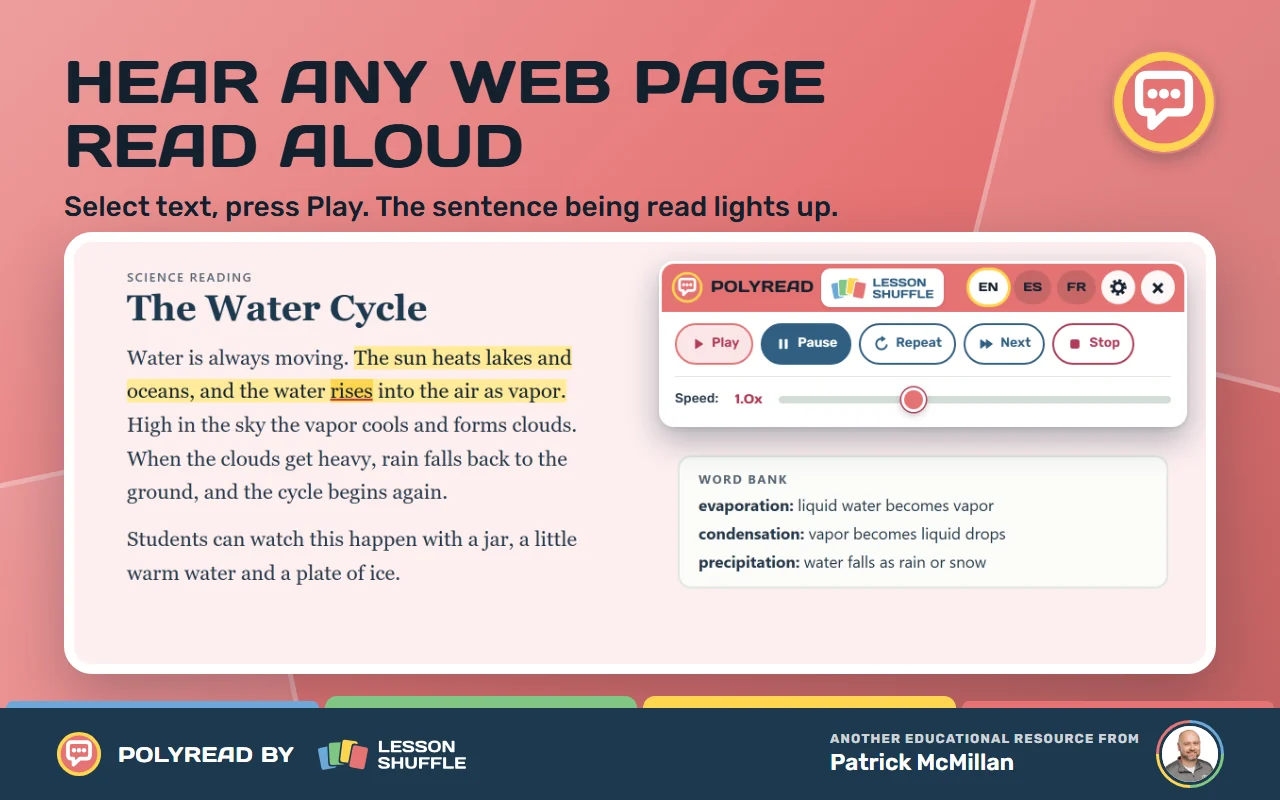
PolyRead reads the text you select out loud. It lights up each sentence and word as it goes. It is made for multilingual learners and for students who need text read aloud, with Chromebooks in mind.
Instruction first, tool second. Made by Patrick McMillan, a teacher.
Get started
- Choose Get it on Chrome and add PolyRead to Chrome. Pin the icon so it is easy to find.
- On a regular web page, click the PolyRead icon. The toolbar appears at the top right.
- Select some text. The buttons stay grey until you do. Text you selected before opening PolyRead is picked up too.
- Click Play. The selection clears and the highlights follow the voice.
- Click the icon again, or the x, to hide the toolbar. This stops the speech.
Using it
Three languages
The toolbar has EN, ES and FR buttons. PolyRead picks the language for each sentence from its accents, common words and the page’s language tag. The lit button shows the language being read. Click a button to turn that language on or off. One always stays on, and when only one is on, all text is read in that language.
Controls
Play (it becomes Resume when paused), Pause, Repeat, Next and Stop. The Speed slider goes from 0.5x to 2.0x, and starts at 1.0x.
How it reads
Resume restarts the current sentence. Stop clears the highlights, and Play starts again at the first sentence. Next on the last sentence jumps to the next block of text on the page, skipping menus and hidden text. Reading stops at the end of your selection. Answer choices in a quiz are read one at a time.
Highlights
The sentence has a light yellow highlight. The word has a darker, underlined highlight. With some voices, notably Google’s online voices, the word highlight is an estimate. The sentence highlight is exact.
Voice settings
Click the gear (Voice settings). Choose a voice for each language from the menus, or leave each on “Auto (most natural).” Voices are marked “natural” or “needs internet.”
On-device voices
The setting “Keep text on this Chromebook (works offline, voices may sound less natural)” makes PolyRead prefer voices that run on the device. The label says Chromebook, but it works the same way on other computers. The voice menus then read “Auto (stays on this Chromebook).” Leave the voices on Auto so it can do this. This is a preference, not a guarantee. A voice you pick yourself that needs internet, or a language with no on-device voice, can still use an online voice.
Shortcuts
With the toolbar open, Alt+P plays or pauses, Alt+N goes to the next sentence, Alt+R repeats the sentence and Alt+S stops. They are ignored while you type in a field. While PolyRead is reading or paused, you can also press Space to pause or resume, the Right Arrow for next, and Esc to stop. Esc closes the settings first. These keys do not work when focus is on a link, a button or a field.
Move the toolbar
Drag the header to move it. With keyboard focus on the header, Shift+Arrow also moves it.
Where it works
PolyRead works on regular web pages. It does not run on chrome:// pages, the Chrome Web Store, PDFs in Chrome’s viewer or some file:// pages. On those pages a red ! shows on the icon.
Something not working?
- A red ! on the icon, or no toolbar? PolyRead cannot run on that page. Use a regular web page.
- Buttons greyed out? Select some text first.
- No sound? Check your volume and pick another voice in Voice settings.
- No word highlight? Pick a voice that is not marked “needs internet.”
- No highlights at all? Your Chrome may be too old to draw them. Speech still works. Update Chrome and try again.
- Wrong language? Turn off the other language buttons.
- Voice cut out, maybe because of Wi-Fi? PolyRead tries the sentence again with an on-device voice within about 3 to 6 seconds. Later sentences stay on an on-device voice until you press Stop. If both fail, it pauses and says “Couldn’t read this sentence. Press Play to try again.”
- Toolbar disappeared after the page changed? Click the icon again.
Frequently asked questions
Does it work offline?
It can. Turn on “Keep text on this Chromebook” and leave the voices on Auto. PolyRead then prefers on-device voices, which work offline but may sound less natural.
Which languages does it read?
English, Spanish and French only.
Does it run on every page by itself?
No. It only runs after you click its icon.
Do my settings follow me to another computer?
No. Your settings are saved in each Chrome profile, on that computer. PolyRead does not save the text it reads.
Are there ads?
No. PolyRead is ad-free.
Your privacy in plain words
- PolyRead sends nothing to Lesson Shuffle. It has no accounts, ads, analytics or server of its own.
- It does not save the text it reads. Your settings (languages, voices and reading speed) are stored in Chrome on your device.
- The voice that speaks comes from your browser or device. Online voices, like Google’s voices in Chrome, send the text being read to that provider. Voice settings marks them “needs internet.”
- To keep text on your device as much as possible, turn on “Keep text on this Chromebook” and leave the voices on Auto. PolyRead then prefers on-device voices. This is a preference, not a guarantee: a voice you pick yourself that needs internet, or a language with no on-device voice, can still send the text to an online provider.
- Chrome permissions: activeTab runs PolyRead only after you click the icon, scripting adds the toolbar and highlights, and storage saves your settings.
Read the full privacy policy.
Contact
Questions, ideas or a bug to report? Email patrick@lessonshuffle.com.
Enjoying PolyRead?
Buy me a coffee