


WebInk by Lesson Shuffle
Draw, highlight and annotate on web pages, then save a screenshot.
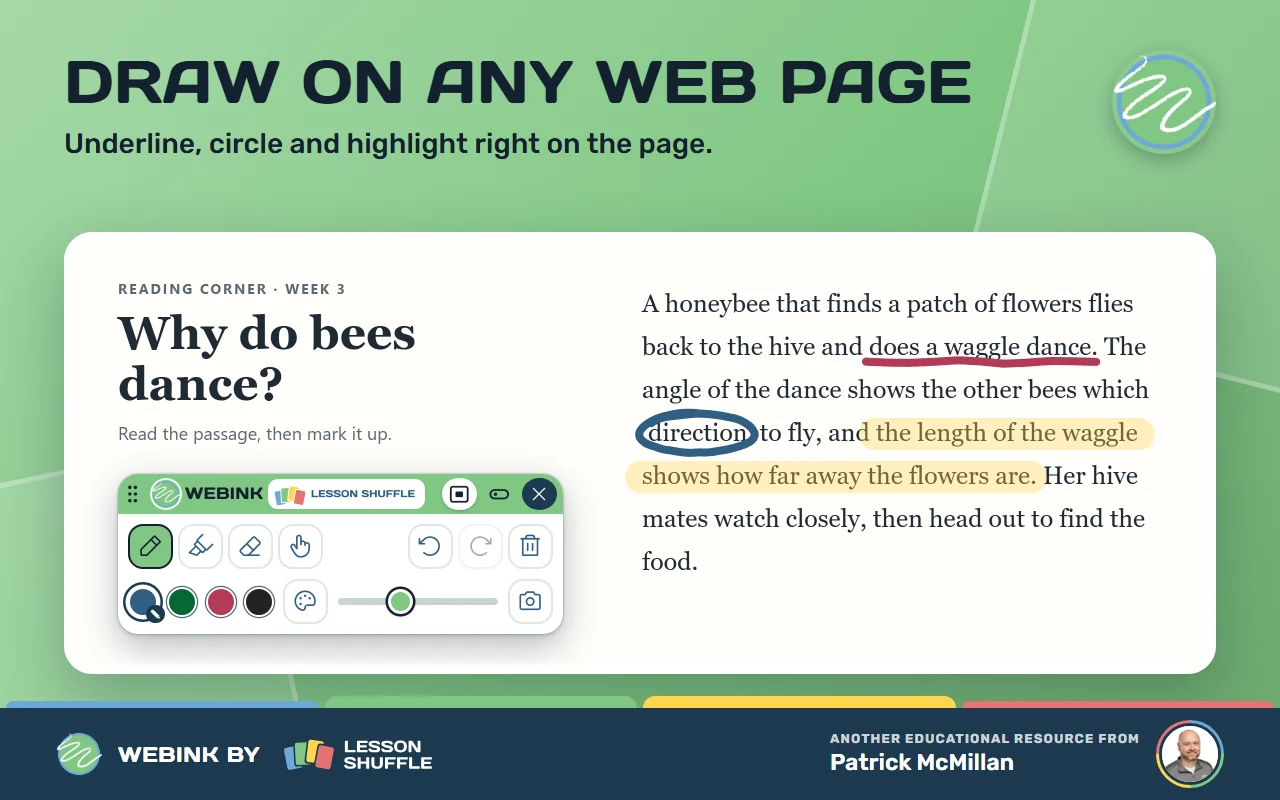
WebInk puts a pen and a highlighter on top of a regular web page. It is made for teachers. There is no account to make, and WebInk makes no network requests.
Instruction first, tool second. Made by Patrick McMillan, a teacher.
Get started
- Choose Get it on Chrome and add WebInk to Chrome.
- Open a regular web page and click the WebInk icon in the Chrome toolbar. If you do not see it, open the puzzle-piece menu.
- Turn on Drawing Mode, or press Ctrl+Shift+9 (Command+Shift+9 on a Mac). The toolbar appears and the icon badge reads ON.
- Pick Pen or Highlighter, a color and a size, then draw. The Eraser rubs it out.
- Press the camera button to save a screenshot, then choose This screen or Whole page. Close the toolbar with the X when you are done.
Using it
Pen, highlighter and eraser
The highlighter is see-through and wider than the pen at the same size. The eraser rubs out both pen and highlighter. Use the Size slider (1 to 20) to change the width.
Colors
The pen and the highlighter each have four color swatches. Tap the selected swatch, or the palette button, to choose any color for that slot.
Scroll or tap the page
Press the hand button to use the page. You can also hold Space, use the mouse wheel, or scroll with two fingers. Tap Pen to draw again.
Undo and redo
Use the Undo and Redo buttons. WebInk keeps 100 steps. Ctrl+Z (Command+Z on a Mac) undoes, and Ctrl+Shift+Z or Ctrl+Y redoes. The trash button (Clear all drawings) can be undone too.
Touch screens
One finger draws and two fingers scroll, even while you draw.
Move or dock the toolbar
Drag the dots to move the floating toolbar anywhere. To dock it, press the Float button in the toolbar header. It shows a small screen icon that shows where the toolbar sits, and the quick tips call it the Dock button. Pick Float, Top, Left, Bottom or Right. Top and Bottom make one row. Left and Right make one column. Choose Float to move it around again. When it is docked, drag the dots to slide it along its edge and clear what you are teaching.
The small pill
The small arrow button (Collapse to a small pill) shrinks the toolbar to the basics: Draw, the hand, Next color, Undo and Open the full toolbar. The pill has no screenshot button.
Toolbar size
In the popup, choose Automatic, Extra small, Small, Medium, Large or Extra large (big boards). The ? button in the popup shows quick tips.
Screenshots
The camera button opens two choices: This screen saves what you see, and Whole page saves the whole page. The toolbar hides while WebInk captures the page. The screenshot downloads as a PNG file named like webink-YYYYMMDD-HHMMSS.png. A whole-page screenshot is put together from several pieces and can be up to 20,000 pixels tall. A header that stays at the top of the page may show more than once.
Shortcut
Ctrl+Shift+9 (Command+Shift+9 on a Mac) shows or hides the toolbar. To change it, go to chrome://extensions/shortcuts. If it says “Not set,” set it there.
Where it works
WebInk works on regular web pages. It does not work on browser pages (chrome:// and edge://), about: pages, view-source:, developer tools, file:// pages, the Chrome Web Store or addresses that end in .pdf. It cannot draw on pop-ups, on pages shown inside another page, or in Chrome’s PDF viewer.
Something not working?
- The popup is greyed out, or asks you to open a regular web page? You are on a page WebInk cannot use. Open a normal website. For a PDF, WebInk’s own message suggests opening it in Google Drive or Slides instead.
- If you see “Something went wrong. Reload the page and try again,” reload the page and try again.
- The shortcut shows a red ! on the icon? You are on a blocked page. If not, check chrome://extensions/shortcuts.
- If you see “Switch back to this tab first” or “Could not capture this page,” keep the tab in front and take the screenshot again.
- Toolbar the wrong size? Change Toolbar size in the popup. Colors look odd? Tap the selected swatch, or the palette button, and pick the color you want. Toolbar off the screen? Drag it by the dots, or press the Float button and choose another spot.
- Drawings gone? Reloading the page removes the toolbar and your drawings. Closing the toolbar keeps them.
Frequently asked questions
Are my drawings saved?
No. Drawings live in the page’s memory, so reloading the page loses them. Closing the toolbar keeps them. They stay where you drew them on the page and are not attached to the text.
Where do screenshots go?
WebInk saves each screenshot as a PNG file that downloads like any other file.
Can I scroll while I draw?
Yes. Press the hand button, hold Space, use the mouse wheel, or scroll with two fingers. Tap Pen to draw again.
Can I dock the toolbar?
Yes. Press the Float button in the toolbar header and choose Top, Left, Bottom or Right. Choose Float to move it around again.
Why does it not work on this tab?
It is probably a page WebInk is not allowed to use, like a Chrome page, the Chrome Web Store, a file or a PDF. Open a regular web page instead.
Can I use it on a touch screen?
WebInk has touch features: one finger draws, two fingers scroll, and there is an Extra large toolbar size. Please try it on your own board before you rely on it.
Does it work in Google Slides or Google Docs?
We have not tested WebInk in Google Slides or Google Docs. Please try it there before you rely on it.
Can I change the shortcut?
Yes. Go to chrome://extensions/shortcuts in Chrome.
Your privacy in plain words
- WebInk makes no network requests. It has no account and no analytics.
- Your drawings stay in the page’s memory only. They are gone when you reload or close the page.
- Your colors, your selected swatches, and your pen and eraser sizes are saved in Chrome’s extension storage. If you use Chrome Sync, Chrome may copy these to your Google account.
- The toolbar layout, position and size stay on this computer.
- Screenshots are saved to your device as downloaded PNG files. WebInk makes no network requests, so it does not send them anywhere.
- Chrome permissions: activeTab gives temporary access to the tab you click or use the shortcut on, scripting adds the toolbar there, and storage remembers your colors, sizes and layout. There are no host permissions.
Read the full privacy policy.
Contact
Questions, ideas or a bug to report? Email patrick@lessonshuffle.com.
Enjoying WebInk?
Buy me a coffee